The Softfilio guide
Set up your digital loyalty card in 11 steps
From sign-up to the first reward you hand over, in 11 steps.
Set up your workspace
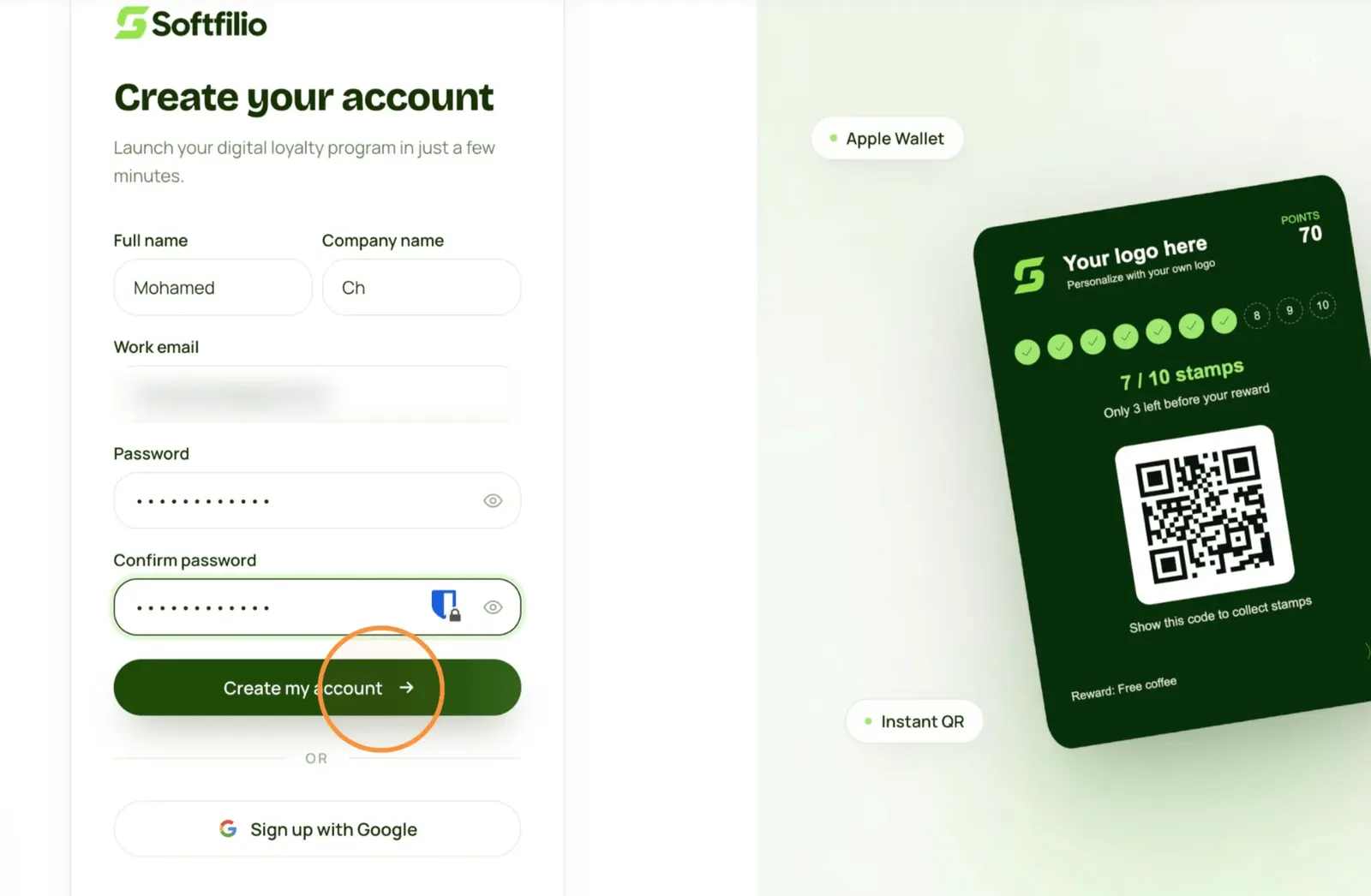
1. Create your account
Enter your name, your business name and your work email, then choose a password. You can also sign up with Google.
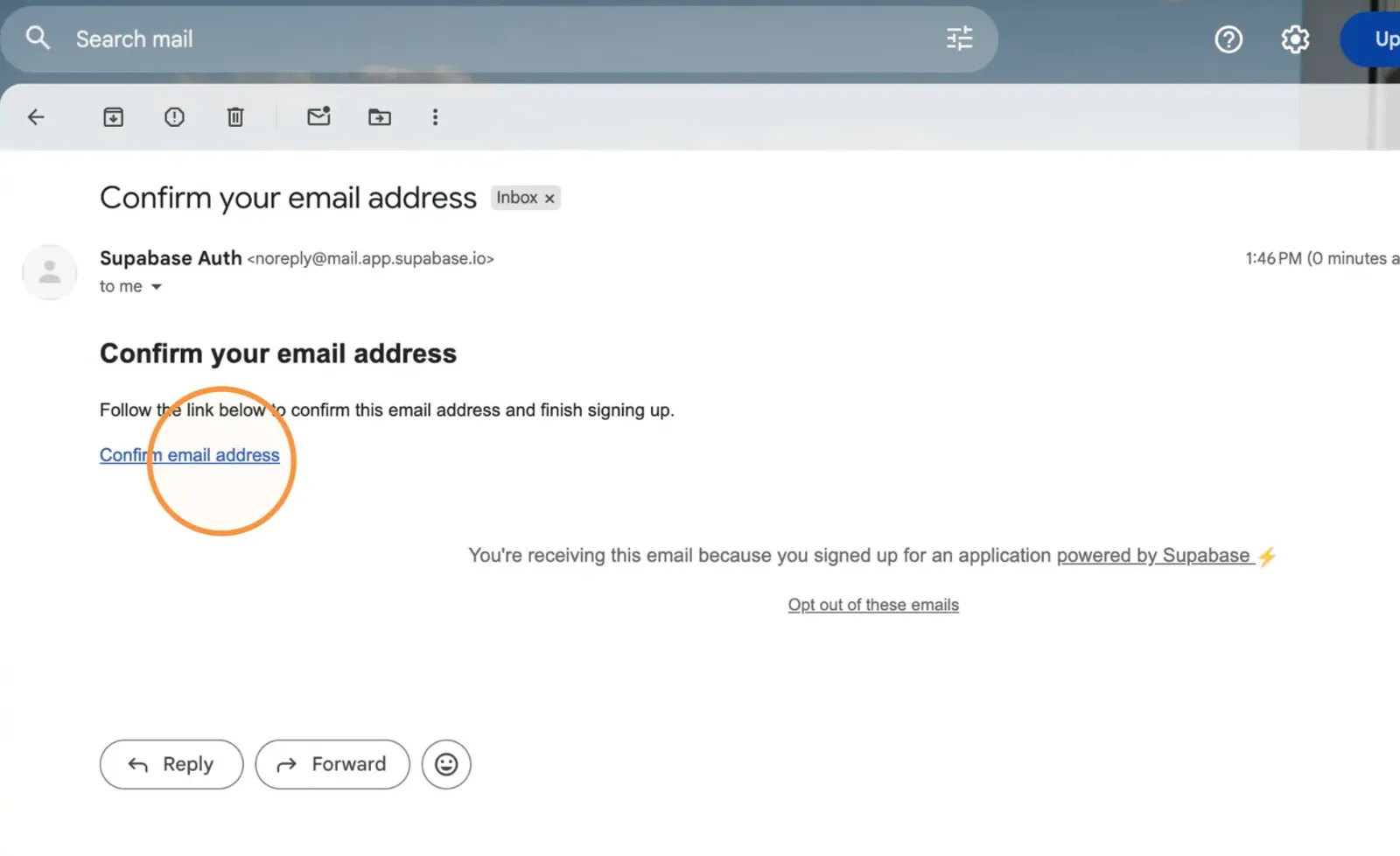
2. Confirm your email
Open the email we send you and click the confirmation link. It brings you back to Softfilio to continue.
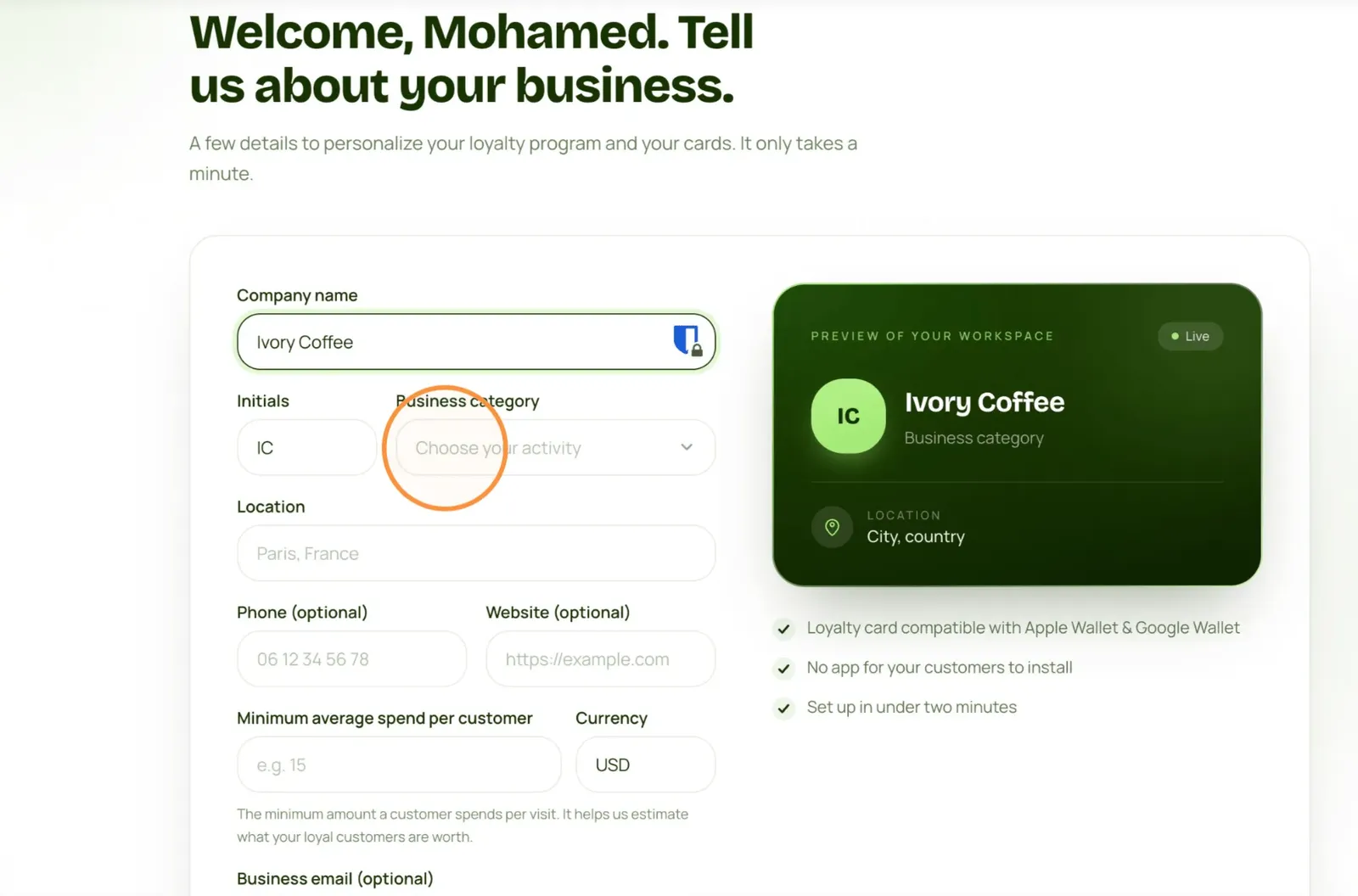
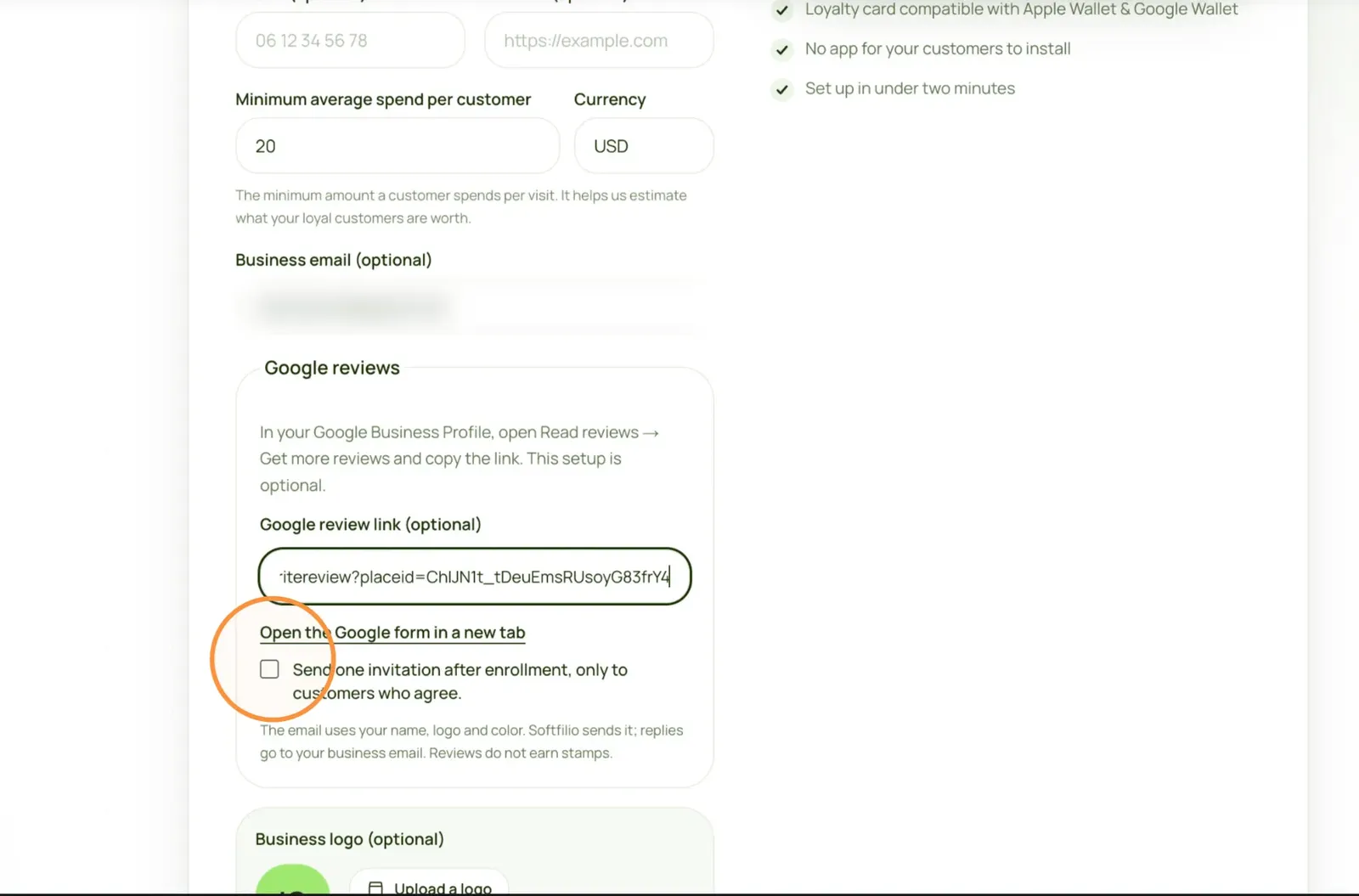
3. Tell us about your business
Add your business name, category, city and average spend. You can also turn on Google review invitations here; it’s optional.
Launch your card
4. Create your loyalty card
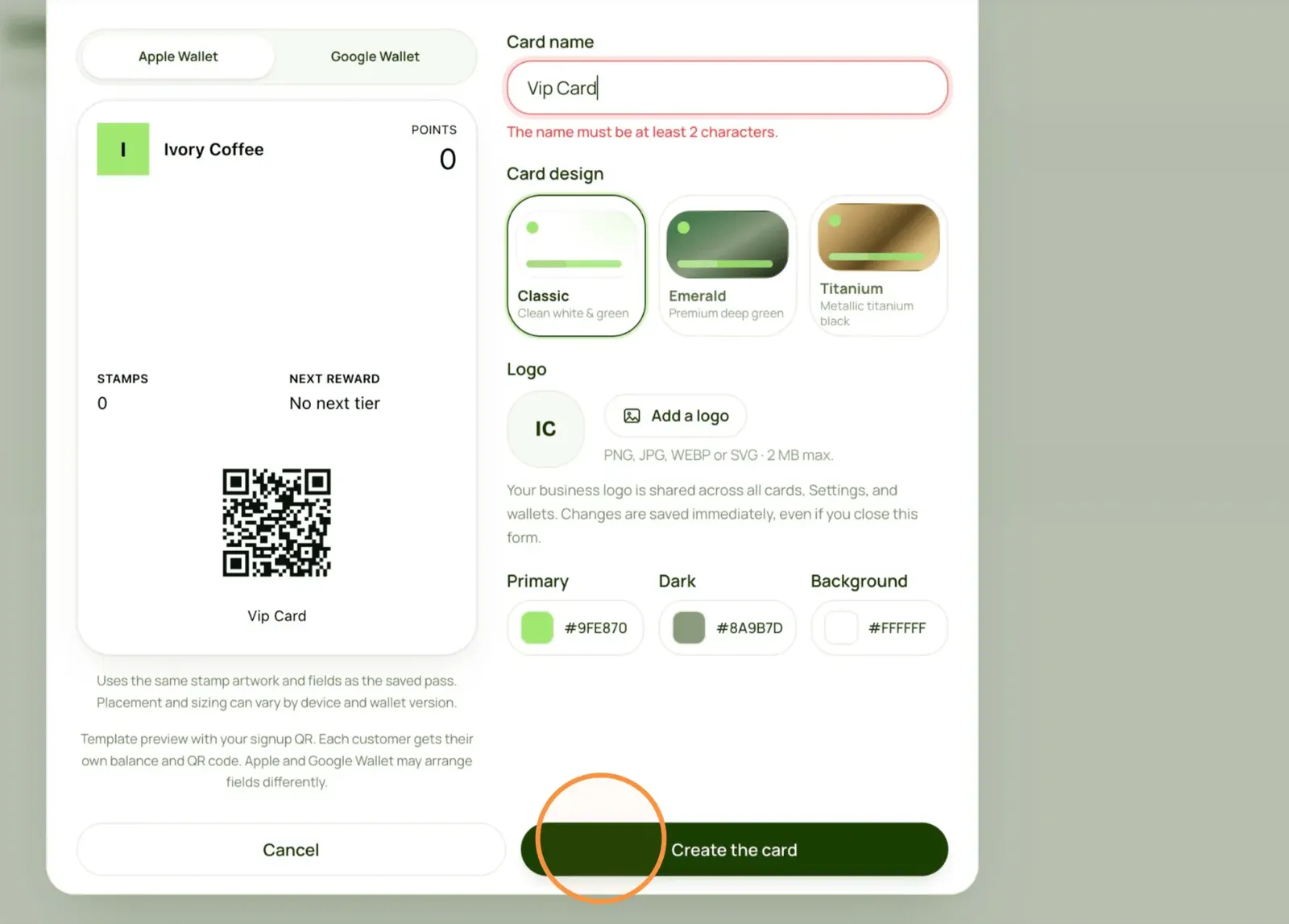
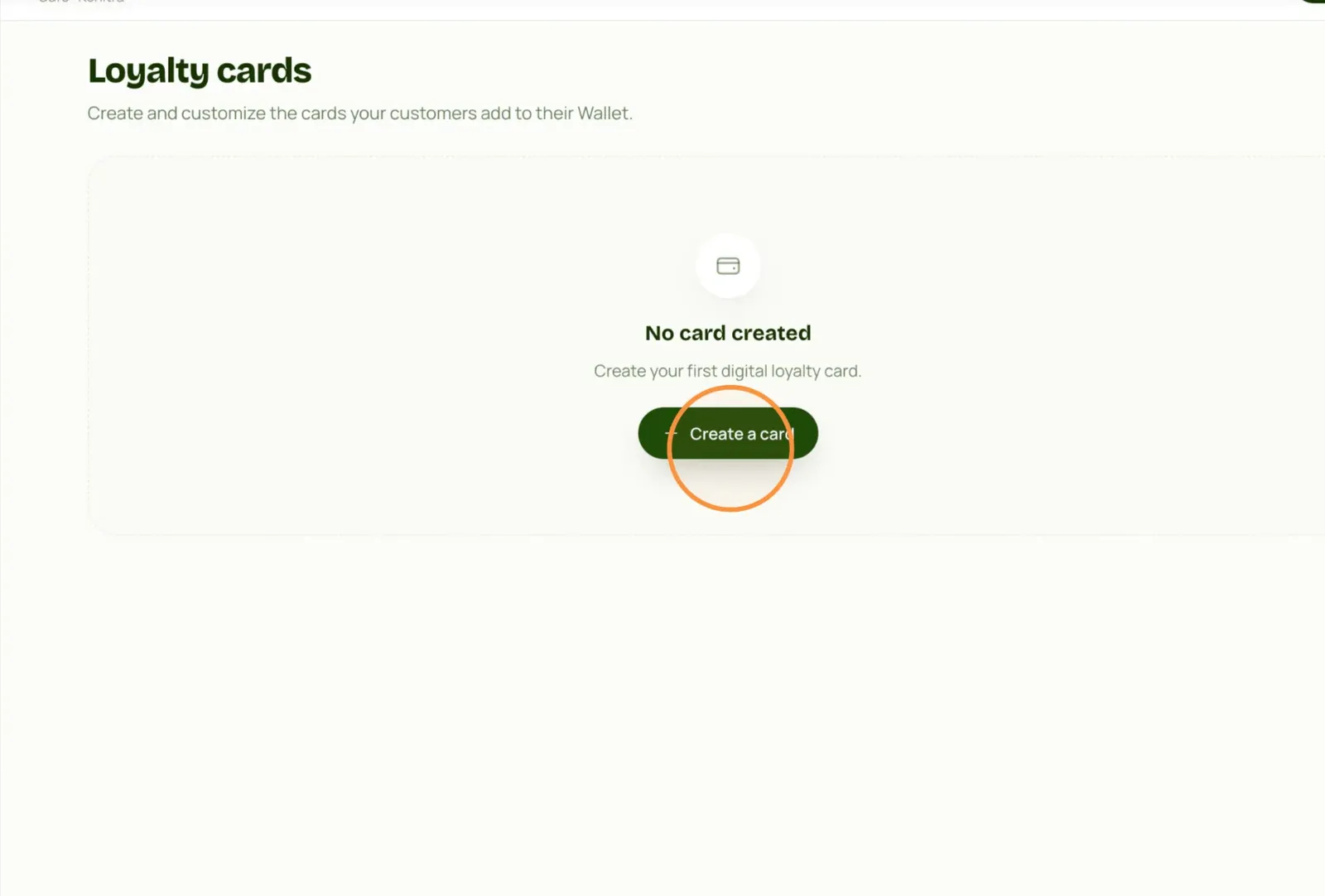
In Cards, click Create a card. Name it, pick a design and your colors; the preview updates as you go.
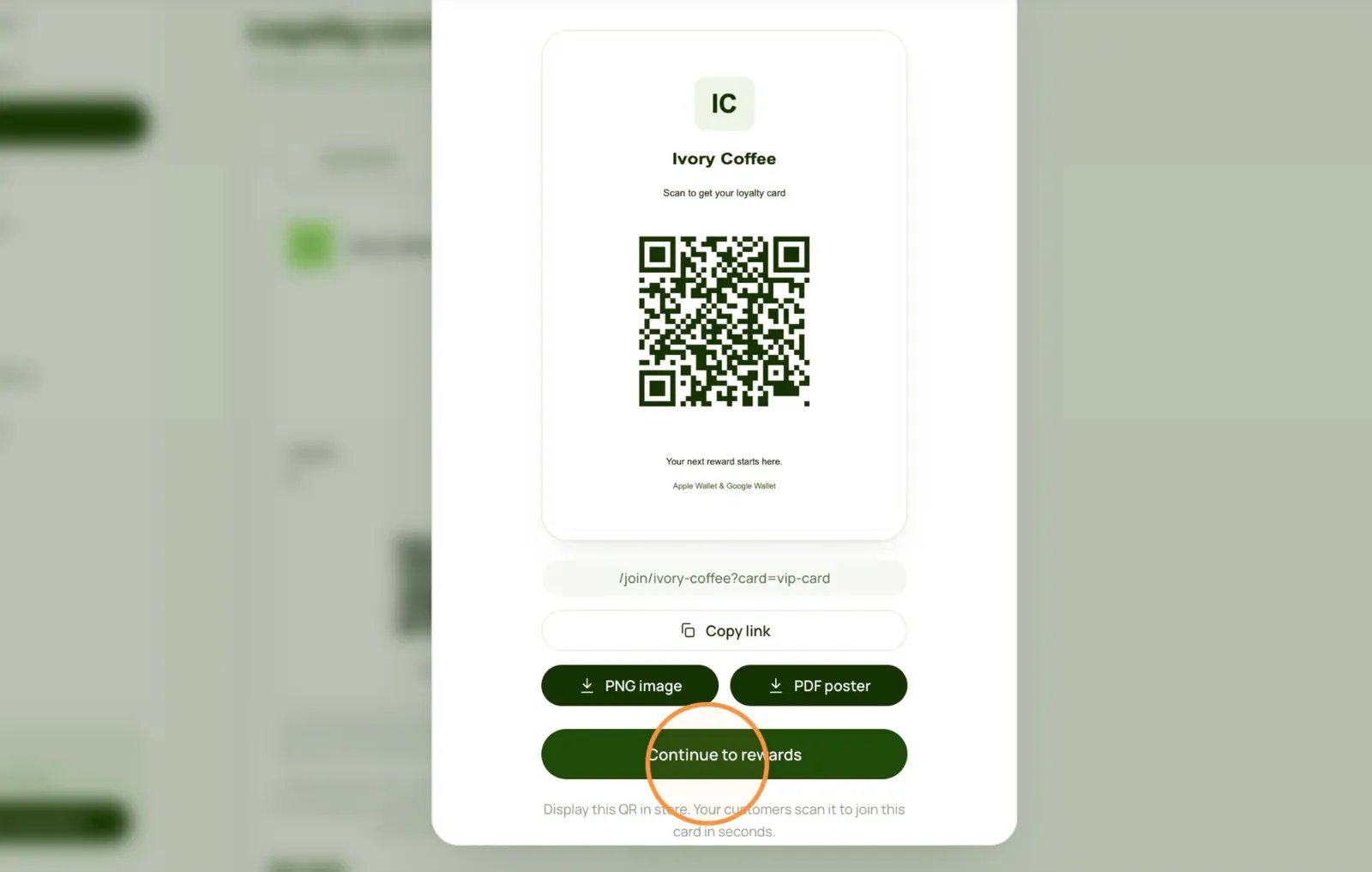
5. Display your QR code
Download the PDF poster (or PNG image) and put it near the till. Customers scan it to add your card to their Wallet.
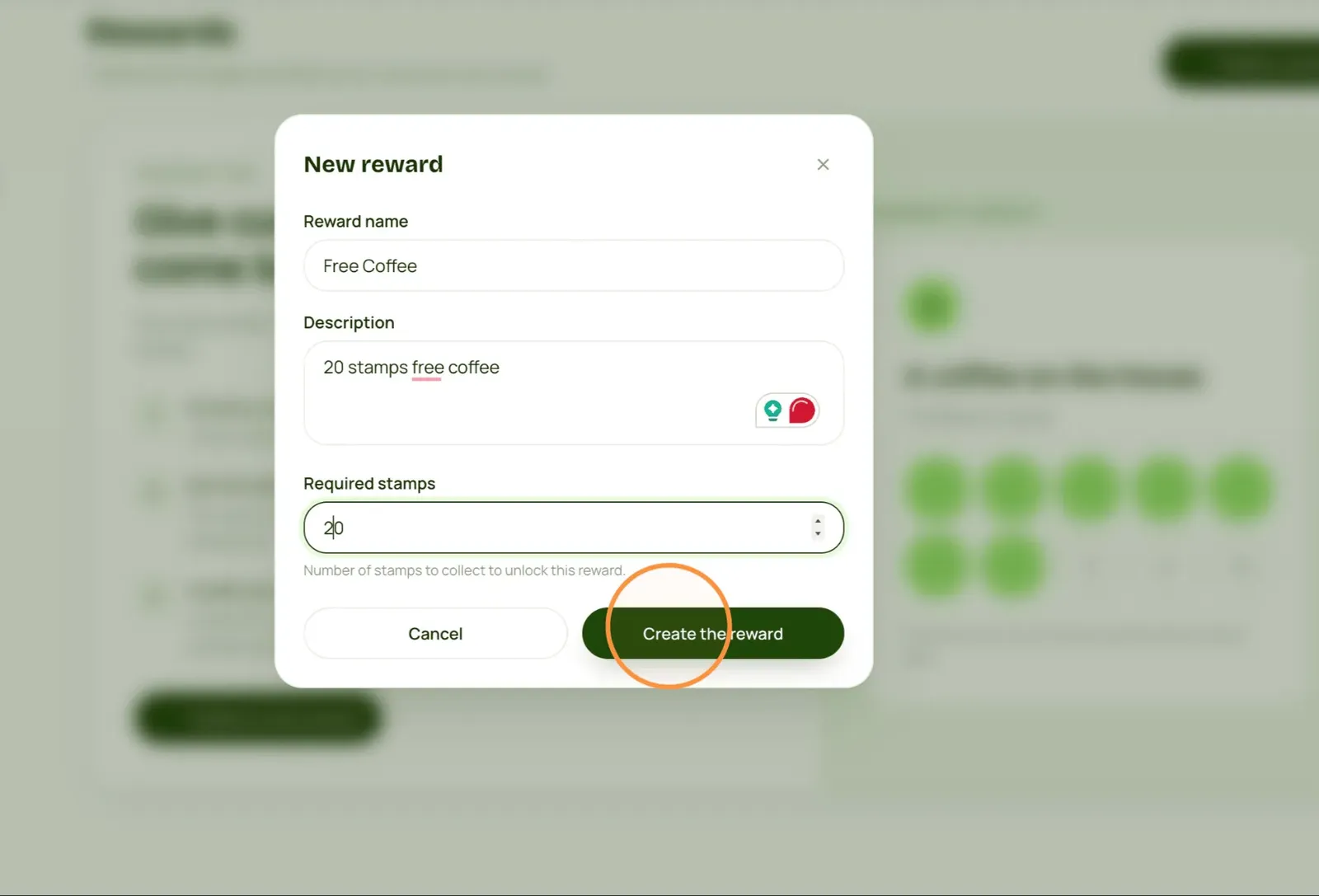
6. Create your first reward
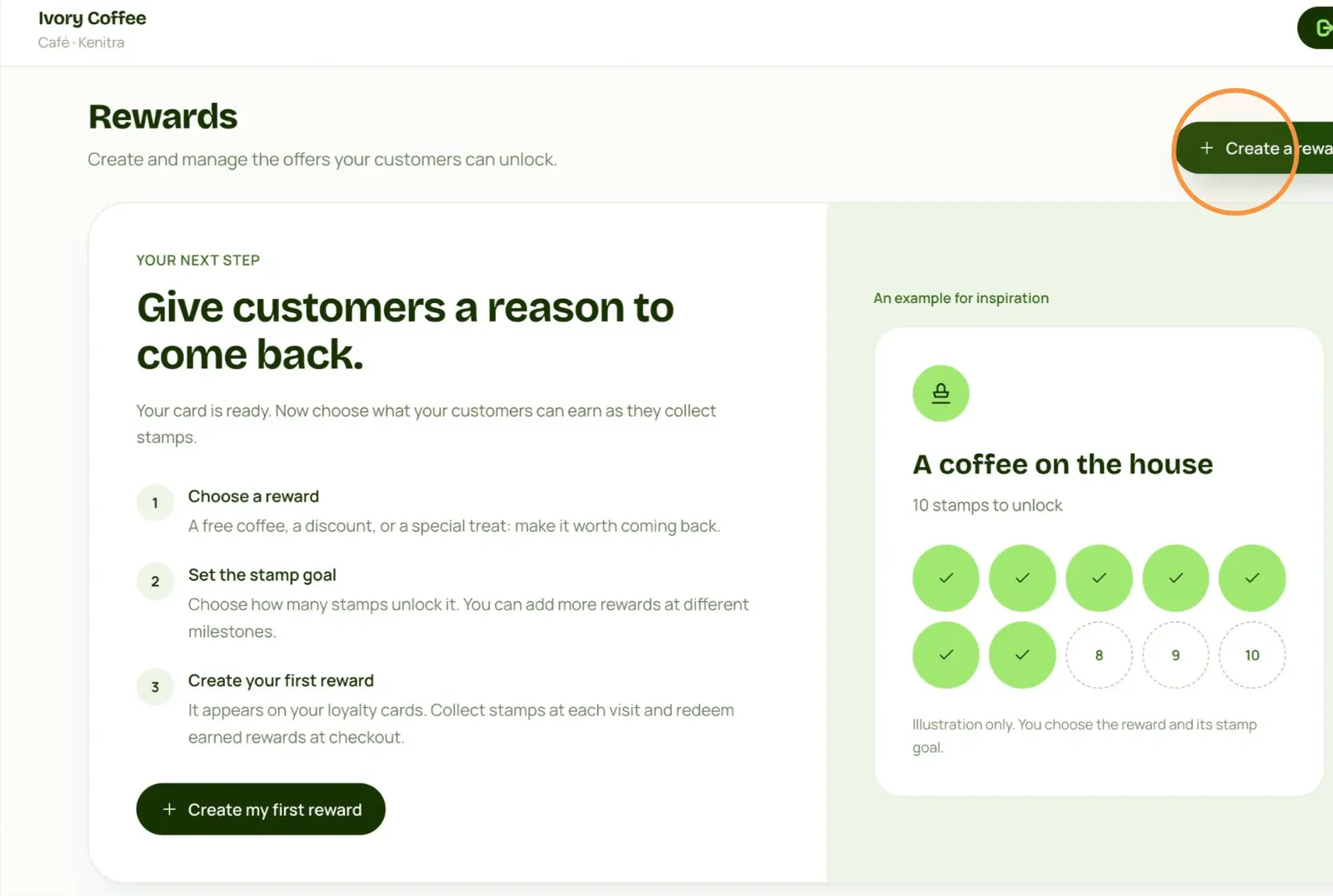
In Rewards, name the offer and choose how many stamps unlock it, like a free coffee after 10 stamps.
Team and visits
7. Choose who scans
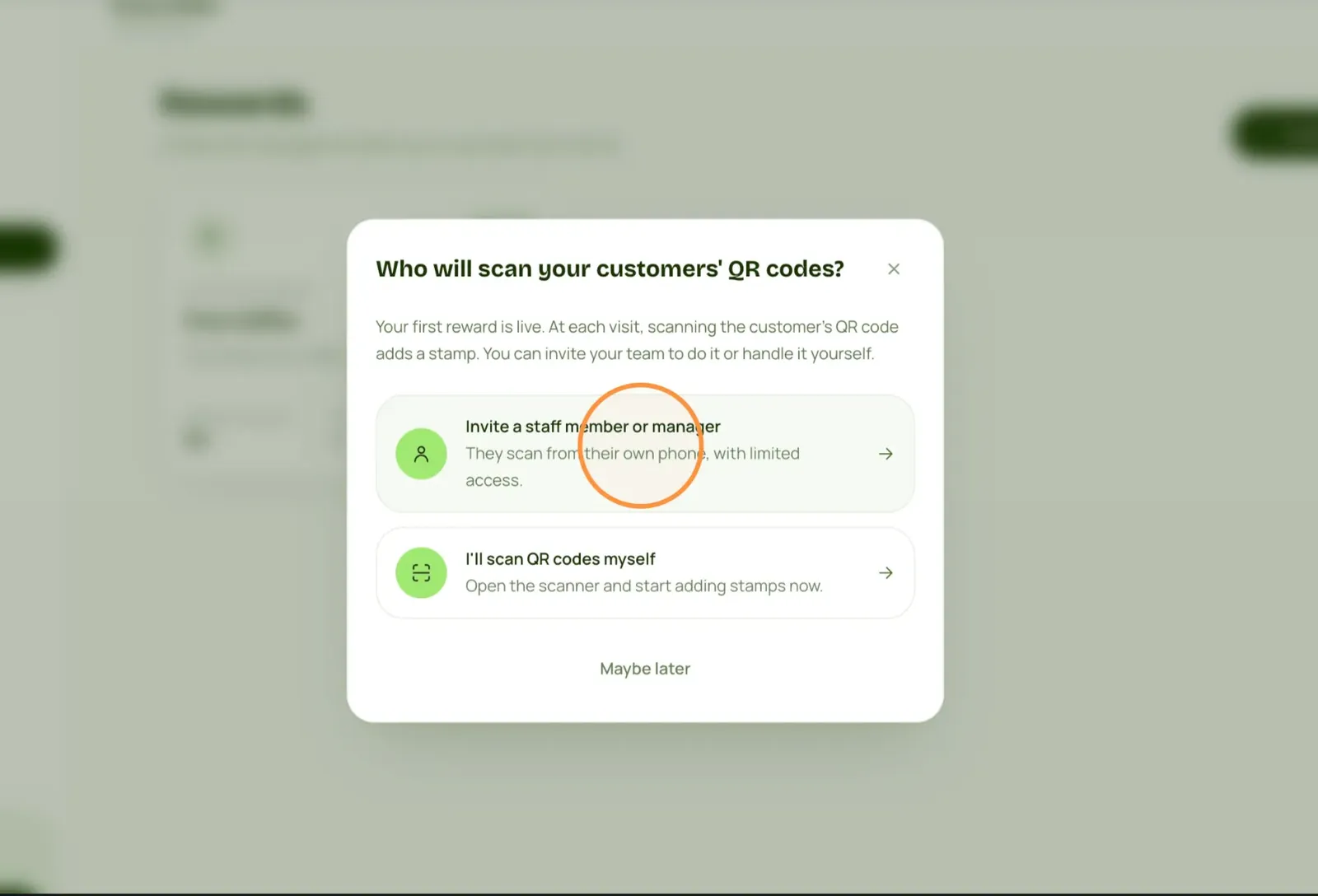
After your first reward, invite a staff member or manager, or scan QR codes yourself.
8. Send the invitation
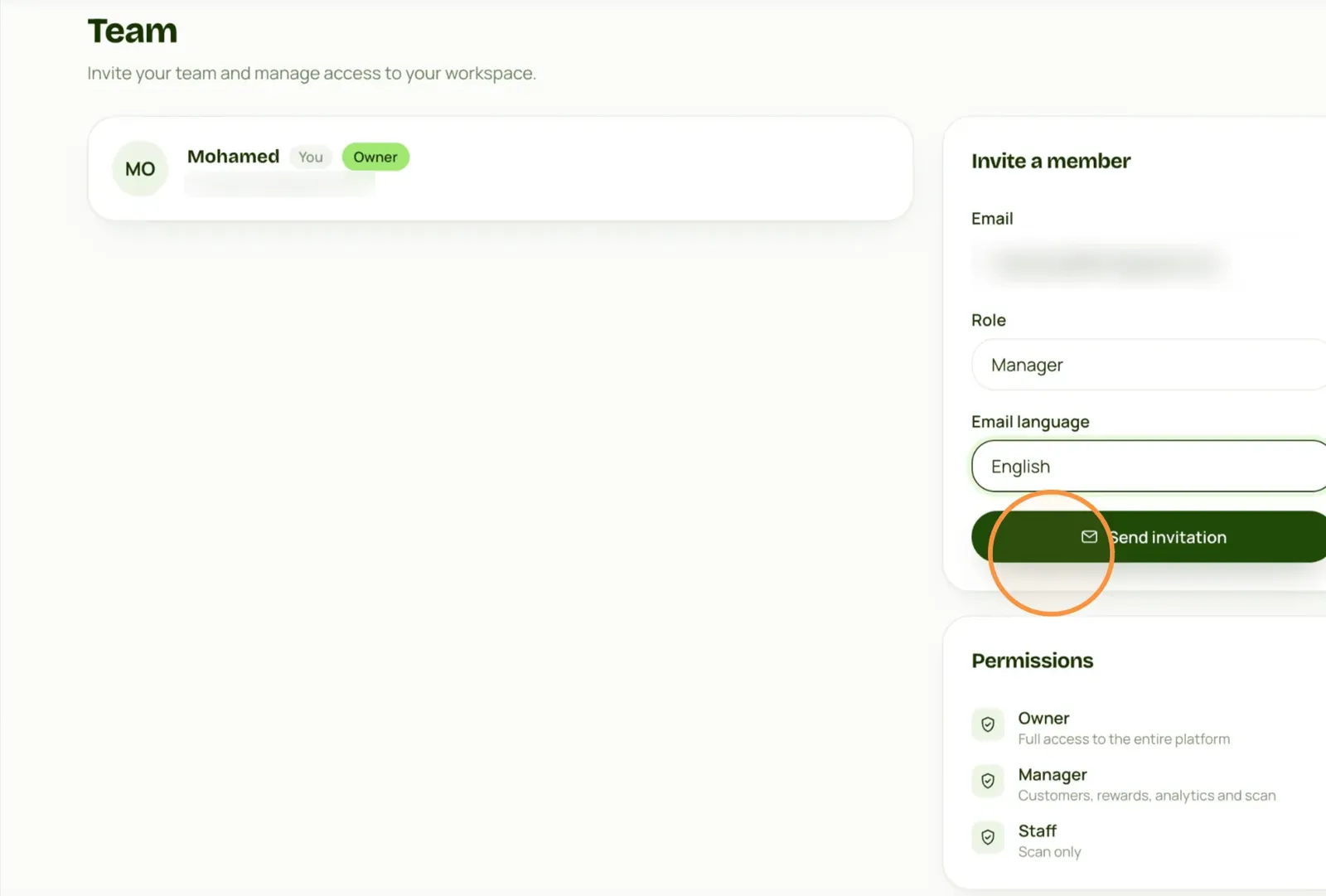
In Team, enter their email, choose a role and the email language, then click Send invitation. Staff members can only scan.
9. Customers join your program
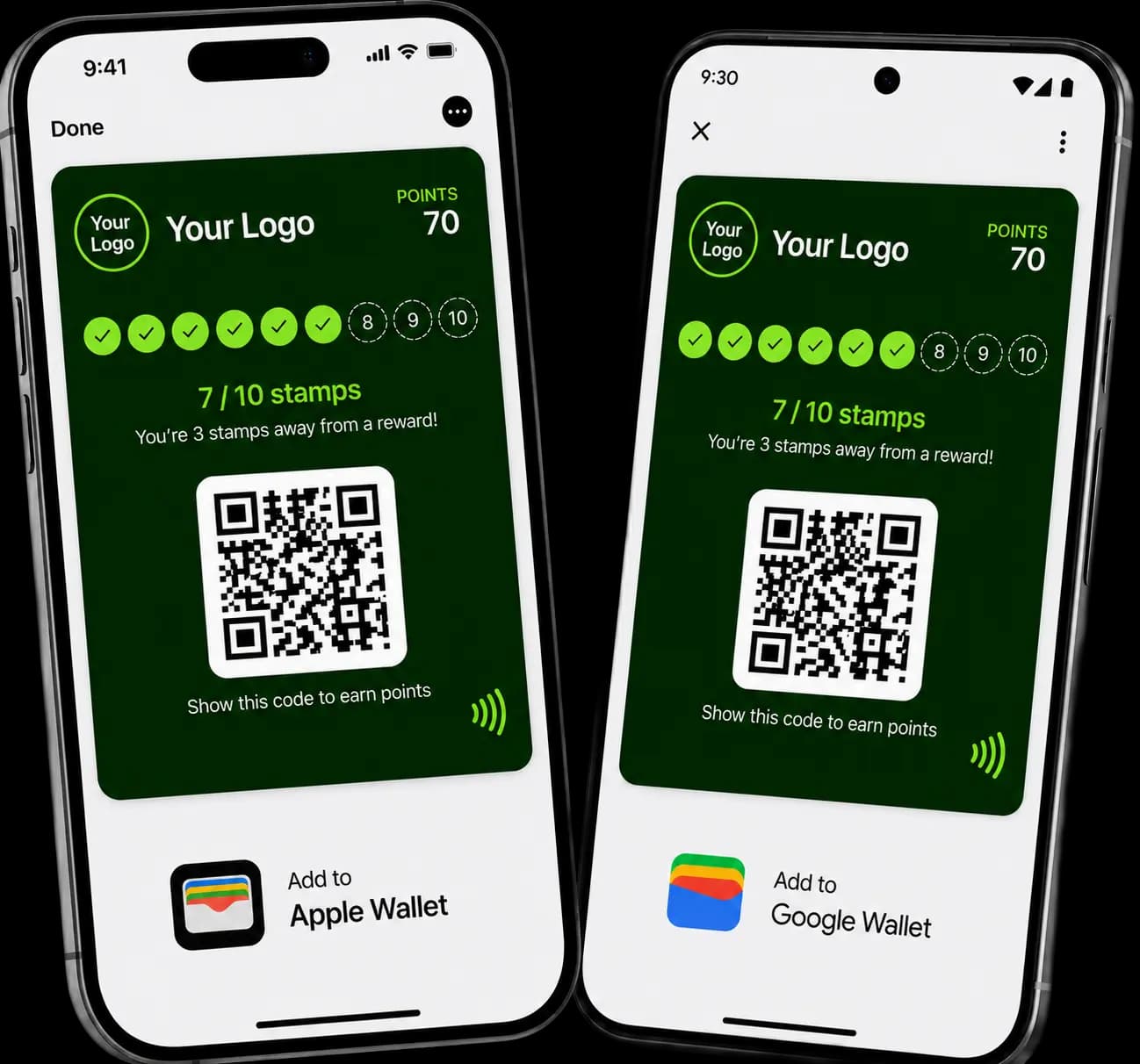
A customer scans your poster and gets your card in their Wallet. If you turned on Google review invitations, customers who agree get one email; reviews never earn stamps.
10. Add a stamp at every visit
Open Scan, scan the QR code on the customer’s Wallet card and click Add a stamp. Their card updates on its own.
11. Hand over the reward
Once unlocked, the reward shows up in Scan. Give it to the customer, then click Redeem to mark it as used.
Ready to launch your card?